Z Image Alternative: The Complete 2026 Guide to Alt Text, Free Photo Sources, and Editing Software
Last Updated: 2026-01-22 18:08:28
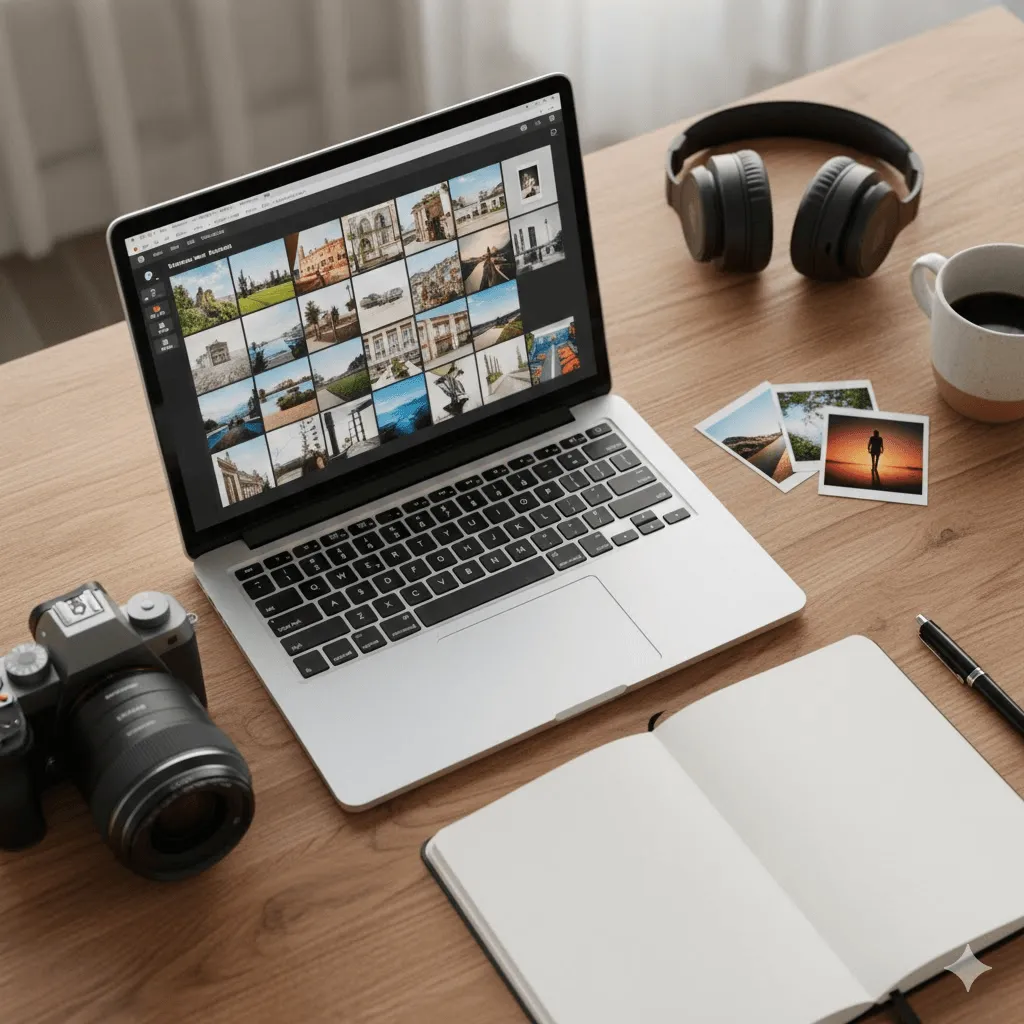
When you search for "image alternative," you might be looking for any of three things: learning how to write proper alt text for accessibility, finding free stock photos, or discovering alternatives to expensive photo editing software. This guide covers all three because they're all connected to making visual content more accessible and useful.
I've spent years working with accessibility guidelines, testing photo editing tools, and helping businesses source visual content. This isn't another recycled guide it's a practical resource based on real experience.
What This Guide Covers
- Alt text fundamentals Writing descriptions that actually help people
- Free image sources Where to find quality photos without paying
- Photo editing alternatives Capable software that won't drain your budget
- Practical examples Real scenarios, not just theory
Let's start with the most important topic: making your images accessible.
Part 1: Alternative Text (Alt Text) for Web Accessibility
What Alt Text Actually Is
Alternative text is the description you add to images so people using screen readers can understand what's in them. It appears in the HTML alt attribute like this:
<img src="product photo.jpg" alt="Blue ceramic coffee mug with white handle">
When a screen reader encounters that image, it reads: "Image: Blue ceramic coffee mug with white handle."
Without alt text, the screen reader might say "Image: IMG_3847.jpg" or skip it entirely neither helps anyone.
Why You Should Care About Alt Text
It's legally required. The Americans with Disabilities Act (ADA) applies to websites, and businesses regularly face lawsuits over inaccessible sites. Section 508 mandates it for federal agencies. WCAG (Web Content Accessibility Guidelines) 2.1 requires it under Success Criterion 1.1.1.
It helps SEO. Google can't see images, but it reads alt text. Well written descriptions help your images show up in search results.
It improves user experience. When images don't load (slow connection, broken link), alt text provides context so users still understand your content.
The Core Principle: Context Over Description
Here's what most guides get wrong: they tell you to describe what's in the image. That's only half right.
You need to describe why the image is there what information it's meant to convey in that specific context.
Example: Product Page
Image: A leather wallet on a white background
❌ Bad: "Brown leather wallet"
✅ Good: "Hand stitched Italian leather bifold wallet with six card slots and RFID blocking"
The good version tells you what matters for a buying decision.
Example: Blog Post About Remote Work
Same wallet image, but now it's in an article about minimalist workspaces.
❌ Bad: "Hand stitched Italian leather bifold wallet with six card slots and RFID blocking"
✅ Good: "Minimalist leather wallet on clean white desk"
See the difference? Same image, different context, different alt text.
Writing Alt Text That Doesn't Waste People's Time
Keep it under 125 characters when possible. Screen readers typically truncate around there. If you need more detail, put it in the surrounding text or use a longer description technique.
Skip the obvious. Don't start with "Image of" or "Picture of" screen readers already announce it's an image. Just describe it.
Don't repeat adjacent text. If your caption says exactly what the image shows, use shorter alt text or focus on details the caption doesn't cover.
End with a period. It tells the screen reader to pause before moving on.
Alt Text by Image Type
Photos and Illustrations
Think about what the viewer needs to know. For a news photo, that might be who's in it and what's happening. For a product shot, it's the relevant features. For a diagram, it's the information being communicated.
Team Photo Example:
❌ "Five people standing together"
✅ "Engineering team reviewing code at whiteboard during sprint planning"
The second version gives context: who they are and what they're doing.
Landscape Photo Example:
If it's illustrating an article about hiking: ✅ "Rocky mountain trail with switchbacks ascending above treeline"
If it's just decorative on your "About" page: ✅ alt="" (Empty alt text so screen readers skip it)
Icons and Buttons
Describe the action, not the icon itself.
❌ "Magnifying glass icon"
✅ "Search"
❌ "Printer icon"
✅ "Print this page"
❌ "Red X button"
✅ "Close dialog"
For social media icons: ✅ "Follow us on Twitter"
✅ "Connect on LinkedIn"
Logos
Always describe logos they're never decorative. Include any text that's part of the logo.
✅ "Acme Corporation rocket ship logo"
✅ "Tech Conference 2026 logo with stylized circuit board pattern"
Images Containing Text
Don't create images of text if you can avoid it use actual text with CSS styling instead. That way it's searchable, selectable, and resizable.
If you must use an image with text (like a flyer or event poster), include all the text in your alt attribute:
✅ "Spring Sale: 40% off all outdoor furniture. Valid April 15 30. Shop online or in store."
Charts and Graphs
Provide a brief summary in the alt text, then put the actual data in an accessible format nearby (like an HTML table or bulleted list).
Bar Chart Example:
Alt text: "Bar chart showing quarterly revenue growth from $2M in Q1 to $5M in Q4 2024"
Then below the chart, include the data:
- Q1: $2.0M
- Q2: $2.8M
- Q3: $3.9M
- Q4: $5.0M
For complex charts, you might add: "Detailed data table below" at the end of the alt text.
Decorative Images
Some images are purely decorative they don't add information, just visual appeal. These should have empty alt text: alt=""
Important: Always include the alt attribute, even if empty. Without it, screen readers will read the filename, which helps no one.
Examples of decorative images:
- Ornamental borders or dividers
- Background patterns
- Stock photos used only for visual interest
- Images where all information is already in adjacent text
Common Alt Text Mistakes
Too vague: "Image" or "Photo" tells you nothing.
Too long: If you're writing a paragraph, you're doing it wrong. Break it up or put detail in the surrounding content.
Keyword stuffing: Don't write "running shoes athletic footwear sneakers jogging shoes workout shoes" for SEO. Write for humans. Google's smarter than that anyway.
Starting with redundant phrases: Screen readers already say it's an image, so skip "Image of" or "Picture of."
Using the filename: "DSC_4729.jpg" helps nobody.
Wrong language: If you translate your page to Spanish, translate the alt text too.
Testing Your Alt Text
Use an actual screen reader:
- NVDA (Windows, free)
- VoiceOver (Mac/iPhone, built in)
- TalkBack (Android, built in)
Just turn it on and tab through your page. Does the alt text make sense when you can't see the images? Does it give you the information you need?
Browser extensions that help:
- WAVE (Web Accessibility Evaluation Tool)
- axe DevTools
- Accessibility Insights for Web
These highlight images and show their alt text, making review easier.
Real World Alt Text Examples
Let me show you how this works with actual scenarios.
E commerce Product Images
Main product image: "Stainless steel espresso machine with built in grinder and milk frother, shown from front"
Detail shot: "Close up of espresso machine control panel showing programmable buttons and pressure gauge"
Lifestyle image: "Espresso machine on modern kitchen counter with fresh croissants and morning newspaper"
Each image serves a different purpose, so each needs different alt text.
Blog Post Images
Instructional screenshot: "WordPress media library interface with 'Add Alt Text' field highlighted in the right sidebar"
Meme or humor: "Distracted boyfriend meme. Man looks back at another woman while his girlfriend looks on disapprovingly. Caption: When you see a new JavaScript framework"
Yes, even memes need alt text. Describe both the visual template and the text so everyone gets the joke.
Social Media Posts
Keep it concise but informative:
"Behind the scenes photo of product packaging being assembled in our workshop"
"Infographic showing 5 accessibility best practices, text version in post caption"
Part 2: Free Image Sources (Stock Photo Alternatives)
Maybe you're searching for "image alternative" because you need photos but can't afford Getty or Shutterstock. Here are the best free options I've actually used.
Best Free Stock Photo Sites
Unsplash
The most popular free photo site, and for good reason. High resolution photos from talented photographers worldwide.
What's good:
- Exceptional quality these don't look like stock photos
- Completely free for commercial use
- No attribution required (but appreciated)
- Good search with trending collections
What's not:
- Very popular images get overused
- Some sponsored content mixed in
- Can be hard to find photos of specific topics
Best for: Website headers, blog posts, social media when you need something artistic
Pexels
Similar to Unsplash but with a focus on more diverse, inclusive imagery.
What's good:
- Both photos and videos
- Strong search filters
- Curated collections
- Free for any use, no attribution needed
What's not:
- Smaller library than Unsplash
- Some quality variation
Best for: Marketing materials, diversity in imagery, video backgrounds
Pixabay
Massive library over 4 million images, illustrations, and vectors.
What's good:
- Huge selection
- Includes vectors and illustrations, not just photos
- Multiple languages
- No account needed to download
What's not:
- Quality varies widely
- Some images look dated
- Interface isn't as polished
Best for: When you need vectors or illustrations, or very specific niche images
Burst by Shopify
Built specifically for business and e commerce use.
What's good:
- Organized by business categories (fitness, fashion, technology, etc.)
- All images cleared for commercial use
- High resolution downloads
- Free, no attribution required
What's not:
- Smaller selection
- Very business focused (not great for personal projects)
Best for: E commerce stores, product mockups, business websites
Specialized Free Photo Resources
For food photography: Foodiesfeed has beautiful food photos
For diverse representation:
- Nappy (Black and brown people)
- WOCinTech Chat (women of color in tech)
- The Gender Spectrum Collection (LGBTQ+ inclusive)
For authentic, non cheesy photos: Reshot avoids the typical stock photo look
How to Use Free Stock Photos Without Looking Generic
- Customize them
Don't just slap a stock photo on your site as is. Edit it:
- Crop to focus on what matters
- Add your brand colors as overlays
- Apply consistent filters across all your images
- Combine multiple photos into a collage
- Choose less popular images
Use reverse image search (Google Images or TinEye) to see how many other sites use an image before you pick it.
- Mix stock photos with original content
Even if budget is tight, mix in some original photos even iPhone photos of your actual product or team. It makes your site feel more authentic.
- Read the license carefully
Most allow commercial use without attribution, but:
- Some require credit
- Some prohibit using identifiable people in certain ways
- Some restrict redistribution
- Always check before using
- Don't forget to add alt text
When you use a stock photo, write alt text that describes your use of it, not the generic stock photo description.
Part 3: Photo Editing Software Alternatives
If you're looking for alternatives to expensive editing software, you have more options than ever.
Free and Open Source Alternatives
GIMP (GNU Image Manipulation Program)
The most powerful free alternative to Photoshop.
What it can do:
- Professional photo retouching
- Layer based editing
- Custom brushes and filters
- Open PSD files
- Plugin ecosystem
The honest truth:
- It's powerful but not intuitive
- The interface takes getting used to
- Some operations take more steps than in Photoshop
- Free tutorials are plentiful
Best for: People willing to invest time learning it, or anyone who's already used it
My take: GIMP can do almost anything Photoshop can, but it won't feel the same. If you're coming from Photoshop, expect a learning curve. But if you're starting fresh or on a tight budget, it's incredibly capable once you learn it.
Photopea
A browser based editor that deliberately mimics Photoshop's interface.
What it can do:
- Runs entirely in your browser
- Interface is nearly identical to Photoshop
- Opens and saves PSD files
- Supports layers, masks, blend modes
- Works on Chromebooks and tablets
The honest truth:
- Requires internet connection
- Performance depends on your browser
- Free version has ads
- Can't handle huge files as well as desktop software
Best for: Photoshop users who need occasional editing without installing software, or anyone who works across multiple devices
My take: This is the easiest transition from Photoshop. If you know Photoshop keyboard shortcuts, they work here too. Perfect for quick edits or when you're not at your usual computer.
Affinity Photo
Now free through Canva (used to cost $70).
What it can do:
- Professional RAW editing
- Non destructive editing
- Advanced retouching tools
- Excellent performance
- One time setup (via Canva account)
The honest truth:
- Requires free Canva account
- Still has a learning curve
- Not quite as feature rich as Photoshop CC
- But damn close
Best for: Serious hobbyists and professionals who want Photoshop level tools without subscription fees
My take: This is probably the best deal in photo editing right now. It's genuinely professional software that's now free. The catch is you need a Canva account, but that's also free.
Simple, User Friendly Alternatives
Paint.NET
Windows only, sits between Paint and Photoshop in complexity.
What it can do:
- Layers and blend modes
- Decent selection of effects
- Plugin support
- Fast and lightweight
- Actually free (not freemium)
Best for: Windows users who want more than Paint but less complexity than GIMP
My take: If you're on Windows and just need to do quick edits, this is perfect. It launches fast, works well, and doesn't overwhelm you with options.
Canva
Technically a design tool, but includes photo editing.
What it can do:
- Super easy interface
- Templates for everything
- Quick edits and filters
- Great for social media graphics
- Collaboration features
Best for: Social media content, quick designs, people who hate complexity
My take: Not for serious photo editing, but unbeatable for making Instagram posts or Facebook headers. The free tier is generous.
For Photographers: Lightroom Alternatives
Darktable
Open source RAW processor and photo management.
What it can do:
- Professional RAW processing
- Non destructive editing
- Batch processing
- Color management
- It's free
The honest truth:
- Learning curve is steep
- Interface isn't pretty
- Runs better on Linux than Windows
- Documentation can be sparse
Best for: Photographers who shoot RAW and want complete control
RawTherapee
Another excellent RAW processor.
What it can do:
- Sophisticated RAW processing
- Detailed controls
- Batch processing
- Cross platform
Best for: Photographers prioritizing RAW quality over workflow speed
Choosing the Right Alternative
If you're a Photoshop user looking to switch: Start with Photopea (easiest transition) or Affinity Photo (if you want desktop software)
If you're a photographer: Try Darktable or RawTherapee for RAW processing, use GIMP or Affinity Photo for compositing
If you just need basic editing: Paint.NET (Windows) or Photopea (any platform)
If you're making social media content: Canva, hands down
If you're on a Chromebook: Photopea or Pixlr (another browser based option)
Bringing It All Together: A Complete Workflow
Here's how these three topics connect in real use:
- Source your image (free stock photo or create your own)
- Edit as needed (using free software)
- Add proper alt text (making it accessible)
Example workflow for a blog post:
- Find a relevant photo on Unsplash
- Open it in Photopea to crop and adjust colors
- Export at web optimized size
- Upload to your CMS
- Write context appropriate alt text
- Publish
Every image on your site should go through all these steps. It's not just about having pictures it's about having accessible, well chosen, properly prepared images.
Tools and Resources
Alt Text Resources
- WebAIM Alt Text Guide Detailed best practices
- W3C Image Tutorial Official accessibility guidelines
- Alt Text Decision Tree Flow chart for choosing alt text
Free Stock Photo Sites Quick Reference
- Unsplash: unsplash.com
- Pexels: pexels.com
- Pixabay: pixabay.com
- Burst: burst.shopify.com
- Reshot: reshot.com
Photo Editing Software
- GIMP: gimp.org
- Photopea: photopea.com
- Affinity Photo: affinity.serif.com (via Canva)
- Paint.NET: getpaint.net
- Darktable: darktable.org
Testing Tools
- WAVE: wave.webaim.org
- NVDA Screen Reader: nvaccess.org (free)
- axe DevTools: deque.com/axe/devtools
Frequently Asked Questions
How long should alt text be?
Aim for 125 characters or less when possible. If you need more, consider whether that detail belongs in the alt text or in the surrounding content.
Do I really need alt text for every image?
Every image needs an alt attribute, but decorative images can have empty alt text (alt=""). This tells screen readers to skip them.
Can I use the same photo editing software professionals use?
Yes GIMP and Affinity Photo are both used professionally. They're just free. The results depend on your skill, not the price tag.
Are free stock photos really free?
Most are free for commercial use without attribution, but always check the specific license. Each site has slightly different terms.
What if I'm terrible at writing alt text?
Start simple. Ask yourself: "If I couldn't see this image, what would I need to know about it?" Write that. You'll improve with practice.
Is it worth learning GIMP if I know Photoshop?
Depends on your situation. If you can keep paying for Photoshop, it's probably not worth the switch. If budget is an issue, GIMP is capable enough once you learn its quirks.
Can I edit photos on my phone?
Yes, but it's limiting. For quick edits, mobile apps work. For serious editing, you need a real computer. Photopea works on tablets though.
Final Thoughts
Whether you came here looking for alt text guidance, free images, or editing software, the common thread is making visual content more accessible and sustainable.
Good alt text makes your site usable for everyone. Free stock photos make quality visuals accessible to small businesses and individuals. Free editing software makes creative tools available to anyone who wants to learn.
Start with one area:
- Pick three images on your site and write better alt text
- Replace one generic stock photo with something from Unsplash
- Download GIMP or Photopea and try editing one photo
Small improvements compound. Your site gets more accessible, your visuals get better, your skills improve.
That's how you build something worthwhile online.