How to Use Midjourney AI: A Step by Step Beginner’s Guide (2026)
Last Updated: 2026-01-22 18:08:28
Midjourney has revolutionized how we create digital art, transforming simple text descriptions into stunning, professional quality images in seconds. Whether you're a designer seeking inspiration, a marketer creating visuals, or simply curious about AI art generation, this comprehensive Midjourney tutorial will take you from complete beginner to confident creator.
I’ve been using Midjourney regularly since early 2023 for client work, product visuals, and content creation and the biggest mistake beginners make isn’t the tool itself, but how they write prompts.
In this guide, you'll learn everything you need to know about getting started with Midjourney from creating your account and understanding the subscription plans, to mastering prompt engineering and leveraging advanced features that most tutorials overlook.
What Is Midjourney AI?
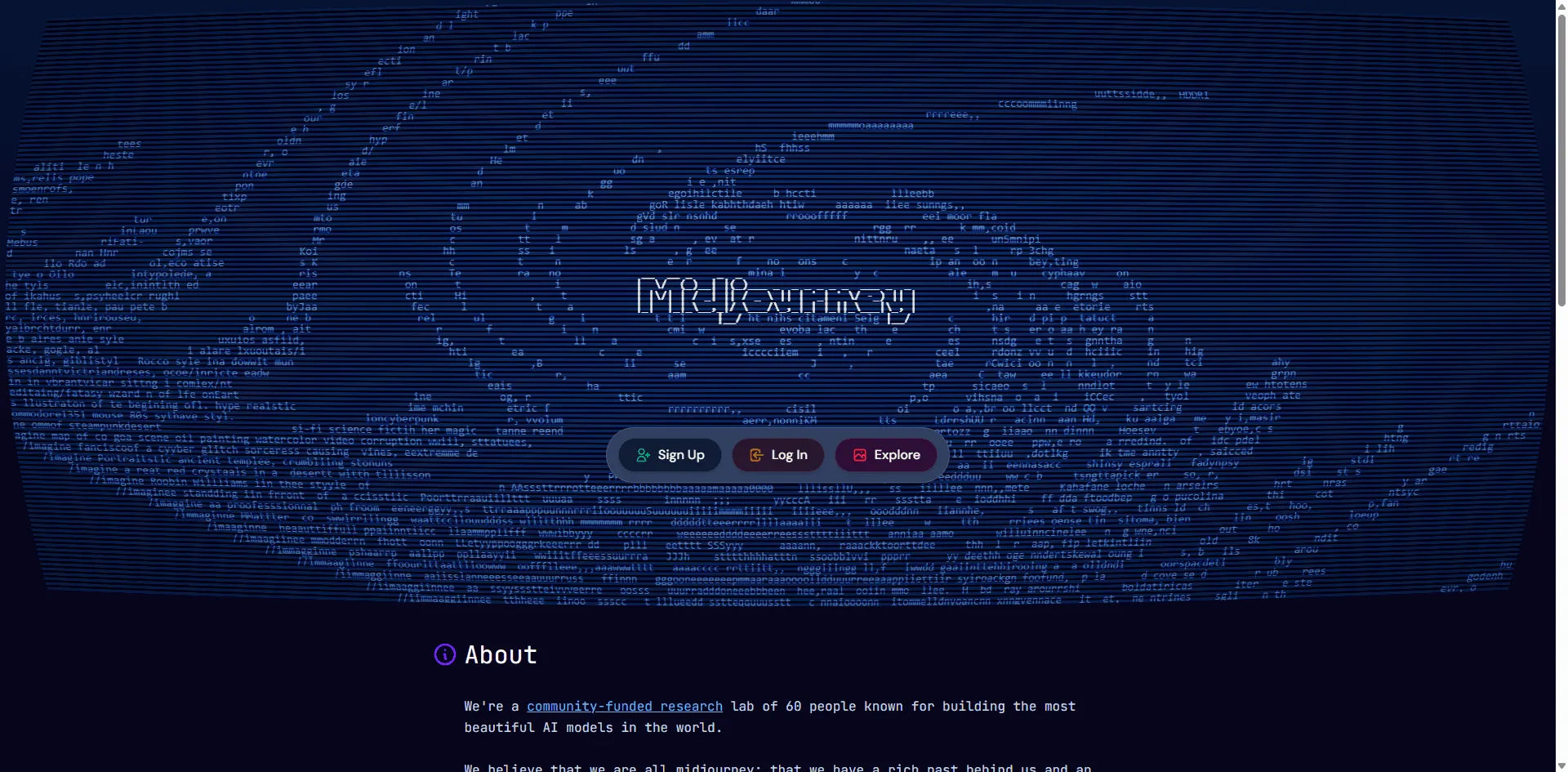
Midjourney is a generative AI tool that creates images from natural language descriptions called "prompts." Developed by an independent research lab in San Francisco led by David Holz (co founder of Leap Motion), Midjourney has quickly become one of the most popular AI image generators alongside DALL E and Stable Diffusion.
What sets Midjourney apart is its distinctive aesthetic quality. The platform excels at producing images with artistic flair, cinematic lighting, and painterly textures that often look like they were created by professional artists. This makes it particularly valuable for:
- Concept art and illustration: Quickly visualize ideas for games, films, or books
- UI/UX design: Generate mockups, icons, and design inspiration
- Marketing and advertising: Create unique visuals for campaigns and social media
- Product photography: Generate lifestyle shots and product visualizations
- Personal creative projects: Bring your imagination to life without artistic skills
Is Midjourney Free? Understanding the Subscription Plans
Let's address the most common question first: Midjourney is no longer free. The platform discontinued its free trial in April 2023 due to overwhelming demand and abuse of the system. However, the subscription plans offer excellent value for the quality of output you receive.
Midjourney Pricing Plans (2026)
| Plan | Price/Month | Fast GPU Time | Best For |
| Basic | $10 | 3.3 hrs (~200 images) | Hobbyists, casual users |
| Standard | $30 | 15 hrs + Unlimited Relax | Regular creators, designers |
| Pro | $60 | 30 hrs + Unlimited Relax | Professionals + Stealth Mode |
| Mega | $120 | 60 hrs + Unlimited Relax | Heavy users, agencies Pro Tip: Annual subscriptions save you 20%. If you plan to use Midjourney regularly, the Standard plan ($24/month annually) offers the best value with unlimited Relax mode generations. |
Getting Started with Midjourney: Step by Step Setup
There are two ways to use Midjourney: through the web interface at midjourney.com or via Discord. The web version is newer, more intuitive, and our recommended approach for beginners. Let's cover both methods.
Method 1: Using Midjourney on the Web (Recommended)
The Midjourney web interface launched in 2024 and provides a much more user friendly experience than Discord. Here's how to get started:
- Visit midjourney.com and click "Sign In" or "Get Started"
- Create your account using Google, Discord, or email authentication
- Choose a subscription plan that fits your needs (you can upgrade anytime)
- Navigate to the Create page where you'll see the Imagine bar at the top
- Type your first prompt describing what you want to create
- Press Enter and watch as Midjourney generates four unique images
The web interface offers several advantages: real time generation preview, easy image organization, built-in editing tools, and a cleaner workflow without Discord's chat noise.
Method 2: Using Midjourney on Discord
If you prefer using Discord or need access to certain community features, here's the setup process:
- Create a Discord account at discord.com if you don't have one
- Join the Midjourney server by visiting midjourney.com and clicking "Join the Beta"
- Find a #newbies channel in the sidebar (or create your own private server)
- Type /imagine followed by your prompt description
- Wait approximately 60 seconds for your four images to generate
Setting up a private Discord server: To avoid the noise of public channels, click the "+" icon in Discord, create your own server, then invite the Midjourney Bot from the official server. This gives you a quiet workspace for your creations.
Creating Your First Midjourney Image
Once you're set up, creating images is straightforward. Every generation starts with a prompt the text description that tells Midjourney what to create.
Understanding the Image Grid
When you submit a prompt, Midjourney generates a grid of four unique image variations. Below the grid, you'll see two rows of buttons:
- U1, U2, U3, U4 (Upscale): Creates a higher resolution version of the selected image
- V1, V2, V3, V4 (Variations): Generates new variations based on the selected image
- 🔄 (Re roll): Runs the same prompt again for completely new results
After upscaling, you get additional options like Vary (Subtle), Vary (Strong), Zoom Out, and Pan allowing you to refine and expand your creation.
Your First Prompt: Keep It Simple
For your first image, start with something simple and descriptive:
a golden retriever puppy playing in autumn leaves, soft sunlight
This prompt works well because it includes a clear subject (golden retriever puppy), an action (playing), a setting (autumn leaves), and a lighting condition (soft sunlight). Midjourney fills in the artistic details.
Mastering Midjourney Prompts: The Art of Prompt Engineering
The quality of your output depends heavily on how you write your prompts. Unlike ChatGPT, which prefers detailed instructions, Midjourney works best with concise, evocative descriptions. Here's how to craft prompts that produce stunning results.
The Prompt Formula
While Midjourney can work with single words, structured prompts give you more control. Consider this framework:
- Subject: What is the main focus? (a samurai warrior, a futuristic city, a cup of coffee)
- Medium: What form should it take? (photograph, oil painting, 3D render, watercolor)
- Environment: Where is it? (in a bamboo forest, on Mars, underwater, in a cozy cafe)
- Lighting: What's the mood? (golden hour, dramatic shadows, neon lights, soft diffused)
- Style/Aesthetic: What feeling? (cinematic, minimalist, vintage, cyberpunk, Studio Ghibli)
- Technical details: Camera or art specifications (35mm lens, shallow depth of field, wide angle)
Prompt Examples: From Basic to Advanced
Basic prompt:
a cat
Improved prompt:
a fluffy orange cat sitting on a windowsill, afternoon sunlight, cozy atmosphere
Advanced prompt:
a fluffy orange tabby cat sitting on a Victorian windowsill, golden hour light streaming through lace curtains, dust particles visible in the light, oil painting style, warm color palette, intimate atmosphere ar 3:4 s 750
Notice how each level adds more specificity while remaining concise. The advanced version also includes parameters ( ar and s) which we'll cover next.
Prompt Tips That Actually Work
- Be specific, not lengthy. "Dramatic lighting" works better than "lighting that creates a sense of drama and intensity."
- Use artistic references. Mentioning styles like "in the style of Studio Ghibli" or "Baroque painting" guides the aesthetic effectively.
- Avoid negative phrasing. Instead of "no trees," focus on what you want. Midjourney often ignores negatives.
- Specify camera details for realism. Terms like "shot on Canon 5D, 85mm f/1.4, shallow depth of field" create photorealistic results.
- Use quality boosters. Adding "highly detailed," "8k," "professional photography," or "masterpiece" can enhance output quality.
Essential Midjourney Parameters You Need to Know
Parameters are special commands added at the end of your prompt (after two dashes) that modify how Midjourney generates your image. Mastering these gives you precise control over your creations.
Most Used Parameters
| Parameter | Usage | Description |
| ar | ar-16:9 | Aspect ratio. Common: 1:1 (square), 16:9 (widescreen), 9:16 (portrait), 3:2 (photo) |
| s or stylize | s-750 | Artistic stylization (0 1000). Higher = more artistic, lower = more literal |
| chaos | chaos-50 | Variation diversity (0 100). Higher = more varied results across the 4 images |
| q | q-2 | Quality setting (.25, .5, 1, 2). Higher uses more GPU time for finer details |
| no | no text, watermark | Negative prompt. Attempts to exclude specified elements |
| seed | seed-12345 | Reproducibility. Same seed + prompt = similar results |
| tile | tile | Creates seamless tileable patterns for textures and backgrounds |
Advanced Reference Parameters
These powerful parameters let you use images to influence your generations:
- sref (Style Reference): Match the visual style of a reference image. Use with sw (style weight) to control influence.
- cref (Character Reference): Maintain consistent characters across multiple generations. Essential for storytelling and branding.
- iw (Image Weight): When using image prompts, controls how much the reference image influences the output (0~2).
Example with style reference:
a mountain landscape at sunset sref https://example.com/style image.jpg sw 100
Advanced Midjourney Features
Image to Image Generation
Beyond text prompts, you can use images as input to guide Midjourney's output:
- Image Prompts: Drag an image into the prompt bar, then add your text description. The image influences composition and content.
- Blend: Use /blend (Discord) or the blend feature (web) to merge 2 5 images together into a new creation.
- Describe: Upload an image and Midjourney will generate text prompts that could recreate it perfect for reverse engineering styles.
In Painting and Editing
The Vary (Region) feature allows you to selectively edit parts of your generated image:
- Upscale an image first
- Click "Vary (Region)"
- Use the selection tool to highlight the area you want to change
- Enter a new prompt describing what should replace that region
This is incredibly useful for fixing hands, changing backgrounds, or adding specific elements without regenerating the entire image.
Zoom and Pan
Expand your images beyond their original boundaries:
- Zoom Out: Extends the image canvas while maintaining the original content in the center. Options include 1.5x and 2x zoom.
- Pan: Extends the image in a specific direction (up, down, left, right) to reveal more of the scene.
These features are perfect for creating wider landscapes, extending portraits to include more background, or repositioning subjects.
Personalization and Style Tuner
Midjourney can learn your aesthetic preferences:
- Rate images: Regularly rate images you like/dislike to train the algorithm on your preferences.
- Style Tuner: Create custom style codes ( sref) by selecting from generated style options. Share these codes with others.
- Use p flag: Add p to any prompt to apply your personalized style preferences.
Practical Use Cases and Prompt Templates
For UI/UX Designers
mobile app interface for meditation app, clean minimal UI, soft gradients, iOS style, light mode ar 9:19
dashboard design for analytics platform, dark mode, data visualization, modern SaaS aesthetic ar 16:9
For Product Photography
luxury perfume bottle on marble surface, soft studio lighting, editorial product photography, minimalist composition ar 4:5
wireless earbuds floating with dynamic water splash, high speed photography, dramatic lighting, tech product shot ar 1:1
For Marketing and Social Media
Young professionals working on laptops in modern cafes, candid lifestyle photography, warm tones, authentic feel at 4:5
abstract geometric background, brand colors blue and coral, dynamic shapes, modern corporate aesthetic ar 16:9 tile
For Concept Art and Illustration
ancient library hidden inside a giant tree, fantasy concept art, volumetric lighting, epic scale, detailed environmental design ar 21:9
character design sheet, cyberpunk street samurai, front side back views, detailed costume design, anime style ar 16:9
Midjourney Alternatives Worth Knowing
While Midjourney excels in artistic quality, you might want to explore these free alternatives for specific needs:
- DALL E 3 (via Bing Image Creator): Free, excellent for text rendering in images, integrated with Microsoft products.
- Stable Diffusion: Open source, runs locally, unlimited free generations, highly customizable with community models.
- Adobe Firefly: Commercially safe (trained on licensed content), integrated into Creative Cloud apps.
- Leonardo AI: Free tier available, strong for game assets and 3D style renders.
- Ideogram: Exceptional at text rendering and consistent character generation.
Each tool has strengths. Midjourney remains the top choice for artistic quality and aesthetic appeal, while alternatives may suit specific workflows or budget constraints better.
Frequently Asked Questions
Can I use Midjourney images commercially?
Yes, all paid subscribers own the images they generate and can use them commercially. However, if you're generating images for a company earning over $1M annually, you need the Pro or Mega plan.
How do I create consistent characters across multiple images?
Use the cref (character reference) parameter with an image of your character: "my character in a forest cref [image URL]". The cw parameter controls how strictly the character is maintained.
Why do my hands look wrong?
AI image generators historically struggle with hands. Tips: Include "detailed hands" or "anatomically correct hands" in your prompt, use q 2 for higher quality, and leverage the Vary (Region) tool to regenerate just the hands.
Can I use Midjourney without Discord?
Yes! The web interface at midjourney.com now provides full functionality without needing Discord. It's actually the recommended way to use Midjourney for most users.
What's the difference between Fast and Relax mode?
Fast mode uses your allotted GPU hours and generates images in about 60 seconds. Relax mode (Standard plan and above) is unlimited but slower, with generation times varying based on demand.
How do I keep my generations private?
By default, all images are public in Midjourney's gallery. For private generations, you need the Pro or Mega plan which includes Stealth Mode.
Start Creating Today
Midjourney has democratized digital art creation, making it possible for anyone to generate professional quality images in minutes. The key to success is experimentation try different prompts, play with parameters, and don't be afraid to iterate.
Remember these core principles as you begin your Midjourney journey:
- Start simple, then refine. Begin with basic prompts and gradually add complexity.
- Learn the parameters. Master ar, s, and chaos . First, they have the most impact.
- Study what works. Browse the Midjourney Explore page to see successful prompts from other creators.
- Iterate relentlessly. Great images often come from refining good ones through variations and re rolls.
- Join the community. The Midjourney Discord and forums are invaluable resources for tips and inspiration.
Whether you're creating concept art for your next project, generating marketing visuals, or simply exploring your creativity, Midjourney provides an incredibly powerful canvas limited only by your imagination.
Ready to start? Head to midjourney.com, sign up for a plan that fits your needs, and create your first image today.