Midjourney 与 Discord 深度使用指南:2026版零基础教学,10分钟内完成首张 AI 图片创作
最后更新: 2026-01-22 18:08:25
通过这份 2026 全新 Midjourney 教程,您将能够在 Discord 上快速掌握 AI 绘画入门技巧,凭借专业的提示词指南实现艺术图像的高效智能生成。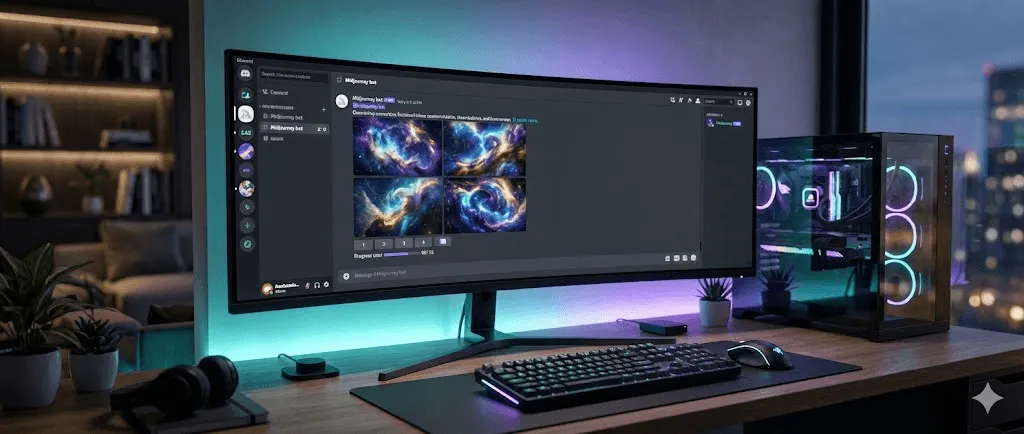
内容提要:Midjourney 是一款基于 Discord 运行的 AI 图像生成工具。您只需完成 Discord 账号注册并加入服务器,在订阅计划后通过 /imagine 指令输入提示词,即可在不到一分钟内快速生成首张 AI 艺术作品。
深度剖析 2026 年两大主流 AI 绘图工具 Ideogram 与 Midjourney,为您带来全方位的技术对比与定价策略分析。通过对文本生成图像、标志设计及排版功能的深度测评,本文将助力您在创意设计工具的选择中精准发力,高效实现商业海报制作与高质量 AI 艺术创作。
深度剖析 2026 年两大主流 AI 绘图工具 Ideogram 与 Midjourney,为您带来全方位的技术对比与定价策略分析。通过对文本生成图像、标志设计及排版功能的深度测评,本文将助力您在创意设计工具的选择中精准发力,高效实现商业海报制作与高质量 AI 艺术创作。
目录
- 了解 Midjourney 及其选择 Discord 的原因
- 前期准备:开始创作前的必备条件
- 环境搭建与配置步骤详解
- 初试创作:掌握核心的 /imagine 指令
- 进阶指南:深度解读图像网格与功能按钮
- Midjourney Discord 常用核心指令集
- 提示词进阶秘籍:撰写技巧与案例分享
- 私有化部署:将 Midjourney 机器人添加至个人服务器
- 故障排除:解决机器人无法正常运行的问题
- 平台抉择:Discord 版与网页版的功能对比
- 常见问题解答 (FAQ)
深度剖析 2026 年两大主流 AI 绘图工具 Ideogram 与 Midjourney,为您带来全方位的技术对比与定价策略分析。通过对文本生成图像、标志设计及排版功能的深度测评,本文将助力您在创意设计工具的选择中精准发力,高效实现商业海报制作与高质量 AI 艺术创作。
深度剖析 2026 年两大主流 AI 绘图工具 Ideogram 与 Midjourney,为您带来全方位的技术对比与定价策略分析。通过对文本生成图像、标志设计及排版功能的深度测评,本文将助力您在创意设计工具的选择中精准发力,高效实现商业海报制作与高质量 AI 艺术创作。
认识 Midjourney:探索这款 AI 绘画利器为何选择 Discord 平台
作为当今最为强大的AI绘图工具之一,Midjourney 能够将简单的文字描述精准转化为惊艳的视觉艺术作品。不同于传统设计软件,您无需具备任何艺术功底,只需通过文字描述创意,Midjourney 即可为您一键生成心中所想。
令许多初学者不解的是:Midjourney 竟然主要运行在 Discord 这一起初为游戏玩家打造的通讯平台上,这究竟是出于什么原因?
Midjourney 的核心在于社区协作,其设计初衷是让创作者们能够相互激发灵感。依托 Discord 的服务器架构,数百万用户在同步生成图像的同时,还能实时见证他人的创意过程,这种体验就如同置身于一个规模宏大的数字艺术工作室。
好消息是:尽管 Midjourney 自 2024 年起已上线官方网页版 (midjourney.com),但 Discord 交互模式凭借其独特的优势,至今依然是备受广大用户青睐的主流创作方式:
- 与全球创作者实时协作,共同激发无限灵感
- 优先体验各项前沿功能,始终保持创作领先
- 加入互助成长的专业社区,在交流中快速进阶
- 支持将机器人部署至私有服务器,打造专属创作空间
无论您是数字艺术家、内容创作者、营销专家,还是对 AI 艺术充满好奇的探索者,本指南都将带您跨越零基础,快速成长为能够熟练运用 Midjourney 的创作高手。
深度剖析 2026 年两大主流 AI 绘图工具 Ideogram 与 Midjourney,为您带来全方位的技术对比与定价策略分析。通过对文本生成图像、标志设计及排版功能的深度测评,本文将助力您在创意设计工具的选择中精准发力,高效实现商业海报制作与高质量 AI 艺术创作。
深度剖析 2026 年两大主流 AI 绘图工具 Ideogram 与 Midjourney,为您带来全方位的技术对比与定价策略分析。通过对文本生成图像、标志设计及排版功能的深度测评,本文将助力您在创意设计工具的选择中精准发力,高效实现商业海报制作与高质量 AI 艺术创作。
开始前的准备:开启创作之旅的必备条件
在正式开启创作之旅前,请先确认您已做好以下准备工作:
必备条件
- 一个 Discord 账号(可前往 discord.com 免费注册)
- Midjourney 订阅会员(方案起售价为每月 10 美元)
- 电脑、手机或平板电脑等任何具备联网能力的终端设备
无需具备:
- ❌ 无需任何艺术造诣或专业设计基础
- ❌ 摆脱对昂贵硬件或高性能显卡的依赖
- ❌ 告别繁琐的软件下载与安装流程
- ❌ 零门槛上手,无需任何 AI 工具使用经验
特别提示:目前 Midjourney 已停止向新用户提供免费试用,您需订阅相关计划方可开启创作之旅。其中,每月 10 美元的基础方案可生成约 200 张图像,足以支持您深度探索并掌握 AI 绘画技巧。
深度剖析 2026 年两大主流 AI 绘图工具 Ideogram 与 Midjourney,为您带来全方位的技术对比与定价策略分析。通过对文本生成图像、标志设计及排版功能的深度测评,本文将助力您在创意设计工具的选择中精准发力,高效实现商业海报制作与高质量 AI 艺术创作。
深度剖析 2026 年两大主流 AI 绘图工具 Ideogram 与 Midjourney,为您带来全方位的技术对比与定价策略分析。通过对文本生成图像、标志设计及排版功能的深度测评,本文将助力您在创意设计工具的选择中精准发力,高效实现商业海报制作与高质量 AI 艺术创作。
分步操作指南
第一步:注册并创建您的 Discord 账号
若您已拥有 Discord 账号,请直接跳至第二步。
- 访问 Discord 官方网站 (discord.com)
- 在登录页面点击“注册”按钮
- 依次填写电子邮箱、用户名并设置登录密码
- 完成注册邮箱的验证以激活账户
- 建议下载 Discord 客户端以获得更佳体验,亦可直接使用网页版
专家建议:建议通过桌面客户端获取最佳体验,其不仅运行更为稳定,还能在作品生成完毕时为您提供及时的消息通知。
步骤二:加入 Midjourney 官方 Discord 服务器
接下来,我们将引导您正式加入 Midjourney 创作社区,开启您的 AI 绘画之旅:
- 打开并登录您的 Discord 账号
- 在界面左侧边栏底端找到并点击“+”号按钮
- 从功能选项中选择“加入服务器”
- 粘贴官方提供的邀请链接:discord.gg/midjourney
- 点击“加入”按钮,即可成功进入服务器
欢迎加入!您现已进入全球规模最大的 Discord 社区之一 —— Midjourney 服务器,与近 2000 万名成员共同开启创作之旅。
步骤三:熟悉服务器界面
面对初次使用时可能略显复杂的 Midjourney Discord 服务器,掌握以下核心要点将助你快速入门:
深度剖析 2026 年两大主流 AI 绘图工具 Ideogram 与 Midjourney,为您带来全方位的技术对比与定价策略分析。通过对文本生成图像、标志设计及排版功能的深度测评,本文将助力您在创意设计工具的选择中精准发力,高效实现商业海报制作与高质量 AI 艺术创作。
| 频道名称 | 功能用途 |
| #getting started | 查阅官方权威教程与快速入门指南。 |
| #announcements | 实时掌握最新功能发布及平台重大更新动态。 |
| #newbies 1 至 #newbies 100 | 初学者开启创作之旅、生成首张 AI 绘画作品的专属空间。 |
| #general 1 至 #general 100 | 用于日常创作与创意交流的核心图像生成频道。 |
| #support | 获取社区向导的专业协助。 建议新手优先在 #newbies 频道开启尝试,这些专为练习设计的环境能让您在无压力的氛围下快速上手。 |
步骤四:订阅 Midjourney 会员服务
Midjourney 绘图功能需订阅会员后方可使用。请参考以下步骤,轻松开启您的订阅计划:
- 在任意频道输入 /subscribe 指令并回车确认
- 点击机器人返回的官方订阅链接
- 挑选最适合您的会员方案:
深度剖析 2026 年两大主流 AI 绘图工具 Ideogram 与 Midjourney,为您带来全方位的技术对比与定价策略分析。通过对文本生成图像、标志设计及排版功能的深度测评,本文将助力您在创意设计工具的选择中精准发力,高效实现商业海报制作与高质量 AI 艺术创作。
| 订阅方案 | 资费标准 | GPU 算力时长 | 适用场景 |
| 基础版 | $10/月 | 约生成 200 张图片 | 适合入门级初学者及轻度体验用户 |
| 标准版 | $30/月 | 约 900 张图片,含无限次慢速生成模式 | 适合高频创作的 AI 艺术爱好者 |
| 专业版 | $60/月 | 约 1,800 张图片,支持隐私生成模式 | 满足专业办公及商业化产出需求 |
| 旗舰版 | $120/月 | 约 3,600 张图片 | 专为大规模、高强度的商业用途设计 |
- 在 Midjourney 官网完成订阅支付
- 随后返回 Discord 即可随时开启创作之旅
建议:您可以先从基础版入手,后续根据需求随时灵活升级,订阅费用将按比例自动折算。
深度剖析 2026 年两大主流 AI 绘图工具 Ideogram 与 Midjourney,为您带来全方位的技术对比与定价策略分析。通过对文本生成图像、标志设计及排版功能的深度测评,本文将助力您在创意设计工具的选择中精准发力,高效实现商业海报制作与高质量 AI 艺术创作。
深度剖析 2026 年两大主流 AI 绘图工具 Ideogram 与 Midjourney,为您带来全方位的技术对比与定价策略分析。通过对文本生成图像、标志设计及排版功能的深度测评,本文将助力您在创意设计工具的选择中精准发力,高效实现商业海报制作与高质量 AI 艺术创作。
开启创作之旅:通过 /imagine 指令生成您的首张 AI 作品
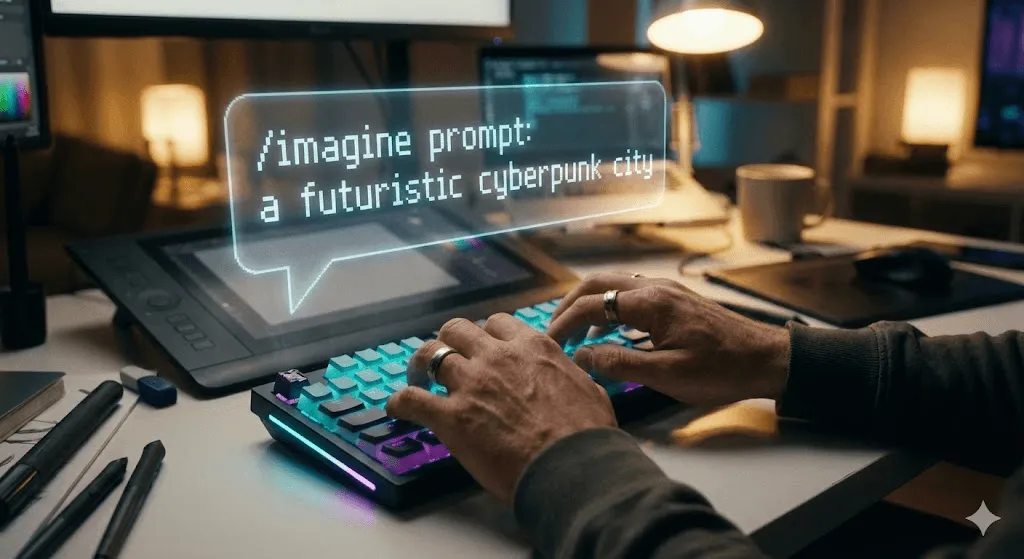 凭借这份 2026 全新 Midjourney 入门指南,您将能够熟练掌握 Discord 端的 AI 绘画技巧,从而实现高效的图像生成。
万众期待的时刻终于到来,现在就让我们开启创作之旅,亲手打造您的首张 AI 绘画作品。
核心操作流程
- 进入任意 #newbies 或 #general 频道
- 在对话框中键入 /imagine 指令
- 待界面弹出提示词(prompt)输入框后,在此描述您想要生成的图像内容
- 输入具体的创意构思(即“提示词”)
- 最后按下回车键即可开启 AI 创作之旅
提示词示例:
/imagine a cozy coffee shop on a rainy day, warm lighting, watercolor style
只需短短 60 秒,Midjourney 即可根据您的文字描述,精准生成四张风格各异的精美图像。
深度解析:优秀提示词的构成要素
提示词无需刻意追求复杂,只需掌握以下万能公式,即可轻松开启创作:
[主体内容] + [场景背景] + [风格氛围]
创作示例:- 漫天秋叶中尽情嬉戏的金毛寻回犬,展现出欢快灵动的摄影质感
- 融合赛博朋克美学与绚丽霓虹的未来城市天际线,定格于日落余晖之中
- 矗立在悬崖之上的中世纪古堡,在波谲云诡的背景下彰显古典油画底蕴
提交后的生成流程
- 机器人响应:Midjourney 在接收到您的提示词指令后将立即予以确认。
- 渲染预览:您将实时观察到图像生成的过程,画面会由模糊逐渐变得精致且清晰。
- 生成完成:系统最终会以 2x2 网格的形式,为您呈现四张各具特色的创意作品。
- 后续交互:利用图像下方的功能按钮,您可以针对心仪的生成结果进行进一步的优化调整。
深度剖析 2026 年两大主流 AI 绘图工具 Ideogram 与 Midjourney,为您带来全方位的技术对比与定价策略分析。通过对文本生成图像、标志设计及排版功能的深度测评,本文将助力您在创意设计工具的选择中精准发力,高效实现商业海报制作与高质量 AI 艺术创作。
深度剖析 2026 年两大主流 AI 绘图工具 Ideogram 与 Midjourney,为您带来全方位的技术对比与定价策略分析。通过对文本生成图像、标志设计及排版功能的深度测评,本文将助力您在创意设计工具的选择中精准发力,高效实现商业海报制作与高质量 AI 艺术创作。
深入了解图像网格与功能按钮的使用方法
通过这份 2026 年最新 Midjourney 入门指南,您将快速掌握在 Discord 上高效生成 AI 图像的技巧,开启智能绘图创作之旅。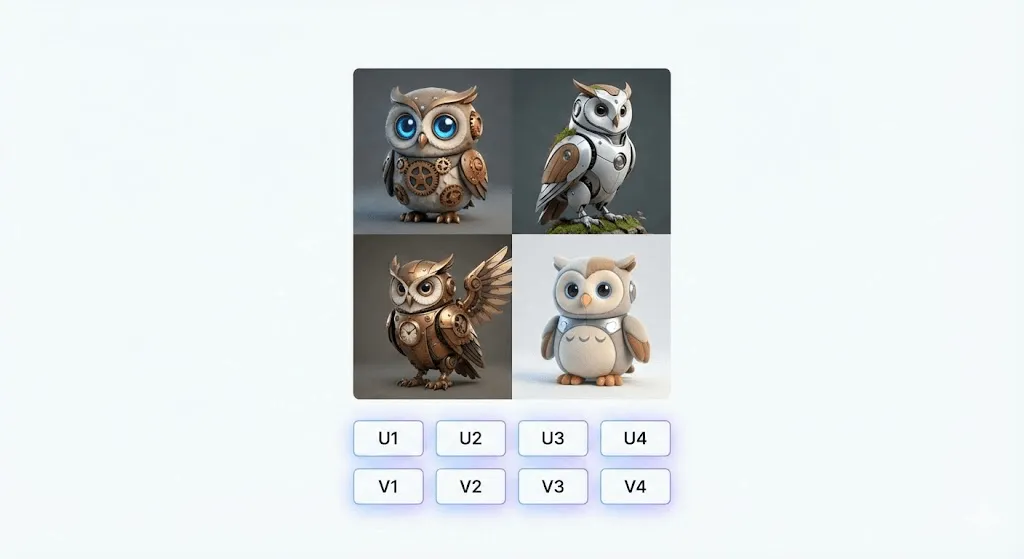
生成完成后,您将看到四张图像以如下方式排列:
┌─────┬─────┐
│  1  │  2  │
├─────┼─────┤
│  3  │  4  │
└─────┴─────┘
在生成的图像网格下方,为您提供了两行功能操作按钮:
第一行 U 按钮:图像放大与选取
深度剖析 2026 年两大主流 AI 绘图工具 Ideogram 与 Midjourney,为您带来全方位的技术对比与定价策略分析。通过对文本生成图像、标志设计及排版功能的深度测评,本文将助力您在创意设计工具的选择中精准发力,高效实现商业海报制作与高质量 AI 艺术创作。
| 按钮 | 功能说明 |
| U1 | 选中第 1 张图片(左上) |
| U2 | 选中第 2 张图片(右上) |
| U3 | 选中第 3 张图片(左下) |
| U4 | 选中第 4 张图片(右下) 点击 U 按钮即可单独提取该图像,并解锁更多进阶编辑功能: |
- 变体功能(微调/强力):针对特定图像生成细微或显著的变化版本
- 向外变焦:在保持画面主体不变的前提下扩展画布,呈现更宏大的视觉效果
- 全景平移:支持向指定方向延伸图像内容,从而灵活优化画面构图
- 画质增强:支持 2 倍或 4 倍的无损放大,显著提升图像分辨率与细节表现
第二行:V 按钮(生成变体)
深度剖析 2026 年两大主流 AI 绘图工具 Ideogram 与 Midjourney,为您带来全方位的技术对比与定价策略分析。通过对文本生成图像、标志设计及排版功能的深度测评,本文将助力您在创意设计工具的选择中精准发力,高效实现商业海报制作与高质量 AI 艺术创作。
| 交互按钮 | 功能说明 |
| V1 V4 | 基于所选图片进一步衍生,生成四张细节各异的新变体 |
| 🔄 | 重试:沿用当前提示词,为您重新创作四张全新的视觉作品 |
操作流程示例
- 使用 /imagine 指令开启创作,快速生成初始图片矩阵。
- 若对特定图片(如第 2 张)满意,点击 V2 即可基于该图像生成更多细节变体。
- 锁定心仪的作品后(如第 3 张),点击 U3 按钮进行高清放大并完成最终选定。
- 预览生成的大图并右键选择“另存为”,即可将作品轻松下载至本地。
深度剖析 2026 年两大主流 AI 绘图工具 Ideogram 与 Midjourney,为您带来全方位的技术对比与定价策略分析。通过对文本生成图像、标志设计及排版功能的深度测评,本文将助力您在创意设计工具的选择中精准发力,高效实现商业海报制作与高质量 AI 艺术创作。
深度剖析 2026 年两大主流 AI 绘图工具 Ideogram 与 Midjourney,为您带来全方位的技术对比与定价策略分析。通过对文本生成图像、标志设计及排版功能的深度测评,本文将助力您在创意设计工具的选择中精准发力,高效实现商业海报制作与高质量 AI 艺术创作。
Midjourney Discord 必备核心指令
除了基础的 /imagine 之外,熟练运用以下进阶指令将全面提升您的 Midjourney 创作体验:
图像生成指令
深度剖析 2026 年两大主流 AI 绘图工具 Ideogram 与 Midjourney,为您带来全方位的技术对比与定价策略分析。通过对文本生成图像、标志设计及排版功能的深度测评,本文将助力您在创意设计工具的选择中精准发力,高效实现商业海报制作与高质量 AI 艺术创作。
| 常用指令 | 功能说明 | 使用示例 |
| /imagine | 根据输入的文本提示词快速生成创意图像 | /imagine sunset over mountains |
| /blend | 将 2 至 5 张图片进行自然融合并重构 | 根据系统提示上传需要融合的图片 |
| /describe | 通过分析上传的图片来获取相关的提示词建议 | 上传图片以供 AI 智能分析与识别 |
账户管理与系统设置指令
深度剖析 2026 年两大主流 AI 绘图工具 Ideogram 与 Midjourney,为您带来全方位的技术对比与定价策略分析。通过对文本生成图像、标志设计及排版功能的深度测评,本文将助力您在创意设计工具的选择中精准发力,高效实现商业海报制作与高质量 AI 艺术创作。
| 指令 | 功能说明 |
| /info | 查看订阅状态与 GPU 剩余可用时长 |
| /settings | 调出设置面板以快速调整默认配置 |
| /prefer suffix | 为每条提示词自动添加预设后缀参数 |
| /stealth | 开启隐私生成模式(限专业版/旗舰版) |
常用工具指令
深度剖析 2026 年两大主流 AI 绘图工具 Ideogram 与 Midjourney,为您带来全方位的技术对比与定价策略分析。通过对文本生成图像、标志设计及排版功能的深度测评,本文将助力您在创意设计工具的选择中精准发力,高效实现商业海报制作与高质量 AI 艺术创作。
| 常用指令 | 功能说明 |
| /help | 快速获取基础帮助信息与操作指南 |
| /ask | 针对 Midjourney 的相关疑问进行咨询与解答 |
| /show <任务 ID> | 凭借任务 ID 检索并重新调取此前生成的图像作品 |
最实用的核心参数
您可以在提示词末尾添加相应参数,从而对生成效果进行灵活调整与精细化控制:
/imagine 山脉自然景观 ar 16:9 v 6.1 style raw| 常用参数 | 功能说明 | 可选值 / 示例 |
| ar | 调整画面的纵横比 | 1:1, 16:9, 9:16, 4:3 等 |
| v | 指定 Midjourney 的模型版本 | 5.2, 6, 6.1 |
| style | 风格变体设置 | raw (呈现更忠实于提示词的写实效果) |
| stylize 或 s | 艺术化强度 (影响 AI 的自由发挥程度) | 0 至 1000 (默认值为 100) |
| chaos | 结果的差异化程度 (混乱度) | 0 至 100 (默认值为 0) |
| no | 排除特定元素 (负面提示词) | --no trees, people (例如排除树木或人物) |
| seed | 使用固定种子值以复现特定的生成结果 | 输入任意整数 |
深度剖析 2026 年两大主流 AI 绘图工具 Ideogram 与 Midjourney,为您带来全方位的技术对比与定价策略分析。通过对文本生成图像、标志设计及排版功能的深度测评,本文将助力您在创意设计工具的选择中精准发力,高效实现商业海报制作与高质量 AI 艺术创作。
掌握提示词编写技巧:实战建议与范例解析
通过这份 2026 全新 Midjourney 入门指南,您将深度掌握 Discord 平台操作与提示词技巧,助您快速上手 AI 绘画并高效生成精美艺术图像。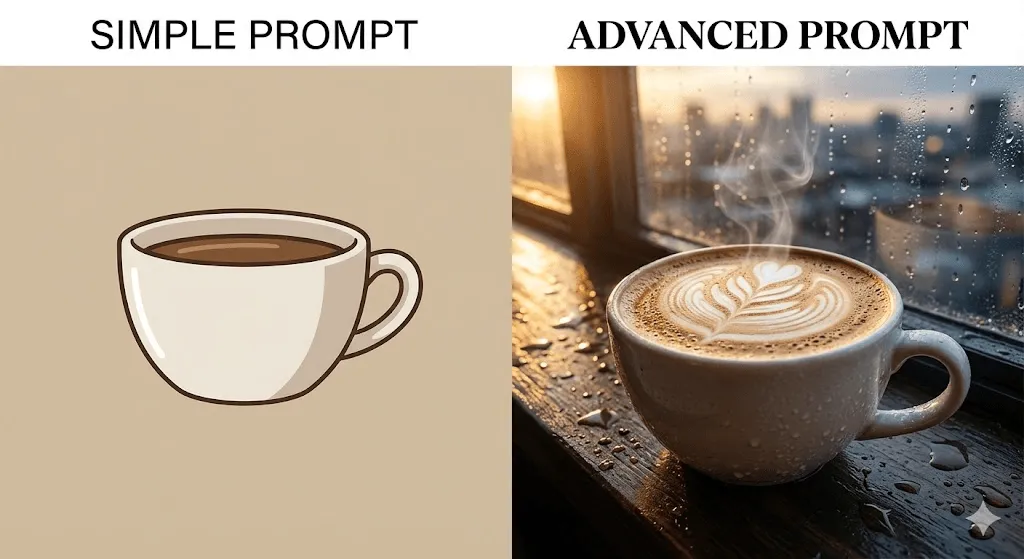
生成效果的优劣很大程度上取决于提示词的质量。通过掌握以下撰写技巧,您将能够更精准地传达创意,从而获得更出色的作品。
进阶创作公式
[画面主体] + [动作姿态] + [环境背景] + [光影效果] + [艺术风格] + [技术参数]初学者提示词与进阶技巧对比
初学者
a cat
生成效果:呈现出的仅是普通的猫咪图像
进阶技巧:
一只蓬松的橘色虎斑猫在复古扶手椅上安然入睡,午后阳光透过蕾丝窗帘洒入书架林立的温馨客厅。
在荷兰黄金时代绘画风格的衬托下,画面展现出极其细腻的皮毛纹理与柔和暖光。 ar 4:3 v 6.1
生成效果:画面描述精准且极具艺术感染力,呈现出版级画质提示词编写技巧
- 精准定义并详尽描述您的创作主体
- ❌ 描述过于模糊:一名女性
- ✅ 描述具体详尽:一位 30 岁、留着红色卷发并带有雀斑、身穿绿色羊毛毛衣的女性
- 细致刻画画面的整体氛围
- ❌ 描述过于笼统:一片森林
- ✅ 细节丰富的精准提示词:黎明时分雾气缭绕的原始森林,金色阳光穿透高耸的红杉林
- 艺术风格参考
- 吉卜力工作室艺术风格
- 莫奈印象派油画风格
- ArtStation 热门数字艺术作品
- 35mm 胶片摄影及复古颗粒感
- 唯美水彩插画
- 巧妙运用光影描述词
- 温暖治愈的黄金时刻光影
- 极具视觉张力的戏剧化明暗
- 细腻自然的柔和漫射光效
- 绚丽夺目的霓虹氛围
- 唯美写意的逆光剪影
- 加入专业摄影术语,打造极致写实的画面质感
- 模拟佳能 EOS R5 搭配 85mm 镜头的专业实拍质感
- 营造极具艺术感染力的浅景深与背景虚化效果
- 呈现视野宏大的广角透视构图
- 捕捉分毫毕现的精细微距摄影细节
10套即拿即用的精选提示词模板
您可以直接复制并按需定制以下内容:
- 人像摄影
[人物描述]专业商务肖像,结合影棚级光效与中性背景,
利用85mm镜头捕捉清晰锐利的焦点,画面比例 3:4- 横屏模式
[地点]在[特定时段]的壮丽景观,天空画面极具戏剧张力,呈现出《国家地理》风格的专业摄影质感,画面比例为 16:9- 商业产品摄影
- 奇幻艺术
[人物/场景],史诗级奇幻插画,凭借细腻的细节表现与张力十足的光影,呈现出 ArtStation 热门的数码绘画艺术风格 ar 2:3- 动漫/漫画
[角色描述],动漫风格,
[情绪]神态与精致眼部细节,
吉卜力工作室画风 niji 6- 室内设计
[空间类型]室内设计结合[设计风格],利用自然采光呈现极简主义暖色调的建筑摄影质感 ar 16:9- 品牌标识与图标
为[品牌/概念]量身定制的极简主义Logo设计,通过简约的矢量几何元素与[配色方案]的巧妙结合,充分展现出专业且现代的品牌格调。 比例 1:1- 美食摄影
[菜品名称],专业美食摄影,
采用俯拍视角并搭配[道具]装饰,
在自然光影下呈现诱人质感 ar 4:5- 复古怀旧风格
[场景描述],20世纪70年代复古摄影风格,画面色彩自然褪色并带有细腻的胶片颗粒感,在经典的柯达克罗姆(Kodachrome)影调下营造出浓郁的怀旧氛围,画幅比例为 3:2- 科幻概念图
[未来科技场景], 科幻视觉概念艺术, 电影级体积光效, 细腻的环境刻画, 银翼杀手风格 ar 21:9深度剖析 2026 年两大主流 AI 绘图工具 Ideogram 与 Midjourney,为您带来全方位的技术对比与定价策略分析。通过对文本生成图像、标志设计及排版功能的深度测评,本文将助力您在创意设计工具的选择中精准发力,高效实现商业海报制作与高质量 AI 艺术创作。
将 Midjourney 机器人添加至您的个人服务器
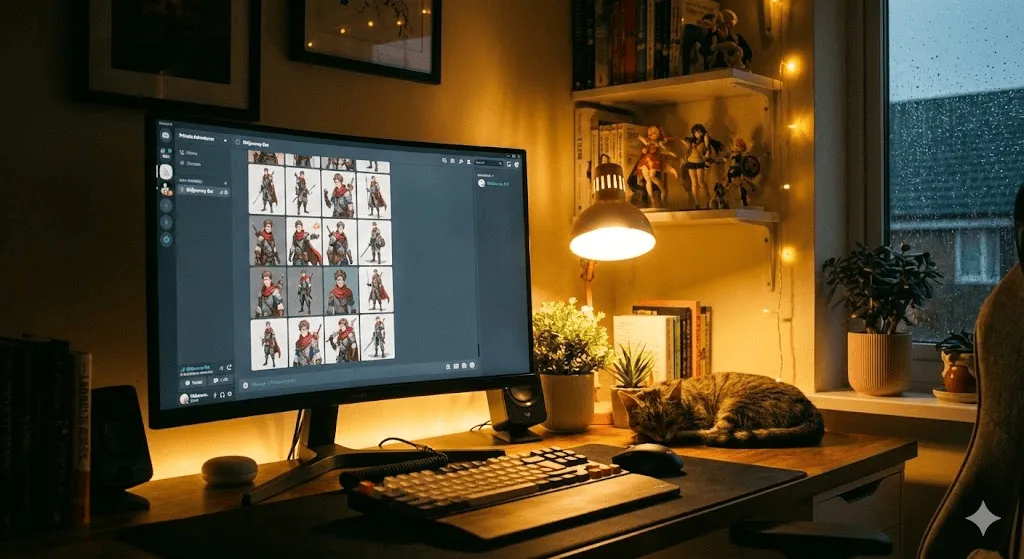
告别拥挤嘈杂的公共频道,只需将 Midjourney 机器人邀请至您的私人 Discord 服务器,即可享受更加清爽、井然有序的专属创作体验。
为什么要创建个人专属服务器?
- 隐私保护:为您提供完全私密的创作环境,有效确保提示词与生成图像不被他人窥视。
- 项目管理:通过为不同项目创建专属频道,您可以轻松实现创意内容的分类与有序管理。
- 团队协作:支持仅邀请特定成员加入,从而在保障私密性的同时实现精准的高效协同。
- 沉浸专注:彻底告别其他用户的消息干扰,助您打造一个毫无杂念的纯净 AI 绘图空间。
如何将 Midjourney 机器人添加至您的服务器
第一步:创建专属服务器(若尚未拥有)
- 在 Discord 界面左侧边栏点击“+”号按钮,开启创建流程。
- 选择“亲自创建”模式以自定义您的专属空间。
- 随后针对使用场景,勾选“仅供我和我的朋友使用”。
- 最后为服务器命名并点击“创建”,即可快速完成搭建。
第二步:邀请机器人
- 访问 Midjourney 官方 Discord 频道
- 在右侧成员列表中定位 Midjourney Bot
- 点击该机器人名称
- 依次点击“添加应用”与“添加至服务器”
- 在下拉菜单中选中您的服务器
- 点击“继续”并授权即可完成
步骤 3:开启创作之旅 机器人现已成功入驻您的服务器,您可以像在公共频道中一样,通过 /imagine 指令随时随地开启 AI 绘画创作。
注意事项
- 订阅服务仅限个人使用,机器人并不支持多用户间的订阅共享
- 无论是在公共频道还是私有服务器中,用户均须严格遵守社区准则
- 除非开通支持“隐身模式”的专业版 (Pro) 或大容量版 (Mega) 套餐,否则生成的图像在 midjourney.com 上依然可见
深度剖析 2026 年两大主流 AI 绘图工具 Ideogram 与 Midjourney,为您带来全方位的技术对比与定价策略分析。通过对文本生成图像、标志设计及排版功能的深度测评,本文将助力您在创意设计工具的选择中精准发力,高效实现商业海报制作与高质量 AI 艺术创作。
深度剖析 2026 年两大主流 AI 绘图工具 Ideogram 与 Midjourney,为您带来全方位的技术对比与定价策略分析。通过对文本生成图像、标志设计及排版功能的深度测评,本文将助力您在创意设计工具的选择中精准发力,高效实现商业海报制作与高质量 AI 艺术创作。
故障排除:解决 Midjourney 机器人无法运行的问题
即使是功能再强大的工具也难免会出现小故障,为此我们为您整理了 Midjourney Discord 常见问题的解决方案,助您快速排除故障、恢复创作。
“应用程序没有响应”
针对这一最为常见的报错情况,请参考以下步骤进行处理:
常见原因:该问题通常由服务器负载过高或 API 接口的临时性波动所致。
解决方案
- 建议耐心等待 5 至 10 分钟后重试,通常 90% 的临时问题都能通过这种方式迎刃而解。
- 您可以前往 Midjourney 服务器的 #status 频道,实时关注并确认当前的系统运行状况。
- 尝试在私信中直接使用机器人,这往往比在拥挤的公共频道中操作更高效、更稳定。
- 若故障依然持续,请尝试在服务器中移除并重新添加机器人,以重置连接并恢复正常服务。
/imagine 指令未正常显示
问题原因:Discord 无法正常识别或响应斜杠指令。
解决方案:
- 将 Discord 客户端更新至最新版本
- 尝试彻底重启 Discord 应用程序
- 在“用户设置”的“辅助功能”界面中,确保已禁用“使用旧版聊天输入框”
- 确认您当前所在的频道已向机器人授予了必要的操作权限
“交互失败”错误提示
原因:Discord 与 Midjourney 服务器之间的连接已超时。
解决方案:
- 图片通常仍在后台生成中,建议您直接访问 midjourney.com 个人画廊查看进度。
- 请耐心等待并尝试再次点击按钮重试。
- 若您持有任务 ID,可通过输入 /show <job id> 指令精准找回生成的图像。
服务器活动线程数已达上限
原因:当前频道内同时进行的生成任务过多。
解决方案:
- 尝试切换至其他生成频道(如从 #general-1 切换至 #general-5)
- 利用私信(Direct Messages)直接与 Midjourney Bot 开启对话
- 避开频道的消息活跃高峰,待处理压力降低后再行操作
私信(DM)场景下机器人无响应的处理方法
问题原因:由于 Discord 的隐私设置限制,系统机器人消息可能已被拦截或屏蔽。
解决方案:通过这份 2026 年度 Midjourney 全方位入门指南,您将能快速掌握 Discord 环境下的 AI 绘画技巧,从而实现高效、智能的图像创作。
- 右键点击 Midjourney 服务器图标
- 在菜单中选择“隐私设置”
- 开启“允许来自服务器成员的直接消息”功能
图片无法生成(进度卡在 0%)
常见原因分析:
- 通过 /info 指令核查订阅是否已过期
- 输入的提示词违反了平台内容合规政策
- 系统服务器当前正处于例行维护中
解决方案
- 通过 /info 指令实时核实您的订阅状态
- 尝试简化提示词,并剔除可能导致生成异常的冲突或违规术语
- 关注 #status 频道,及时掌握官方发布的系统维护公告
常见问题排查指南
如果上述操作均未奏效,建议您尝试按照以下步骤序列进行处理:
- ✅ 查看 #status 频道,确认是否存在已知的服务中断
- ✅ 运行 /info 指令,核实您的订阅状态是否正常
- ✅ 尝试彻底重启 Discord 客户端
- ✅ 切换至其他频道或通过私聊窗口重试
- ✅ 清理 Discord 缓存(路径:设置 → 高级 → 清除缓存)
- ✅ 若问题依然存在,请于 15 至 30 分钟后再次尝试
深度剖析 2026 年两大主流 AI 绘图工具 Ideogram 与 Midjourney,为您带来全方位的技术对比与定价策略分析。通过对文本生成图像、标志设计及排版功能的深度测评,本文将助力您在创意设计工具的选择中精准发力,高效实现商业海报制作与高质量 AI 艺术创作。
深度剖析 2026 年两大主流 AI 绘图工具 Ideogram 与 Midjourney,为您带来全方位的技术对比与定价策略分析。通过对文本生成图像、标志设计及排版功能的深度测评,本文将助力您在创意设计工具的选择中精准发力,高效实现商业海报制作与高质量 AI 艺术创作。
Midjourney Discord 版与 Web 版深度对比:哪款工具更适合您?
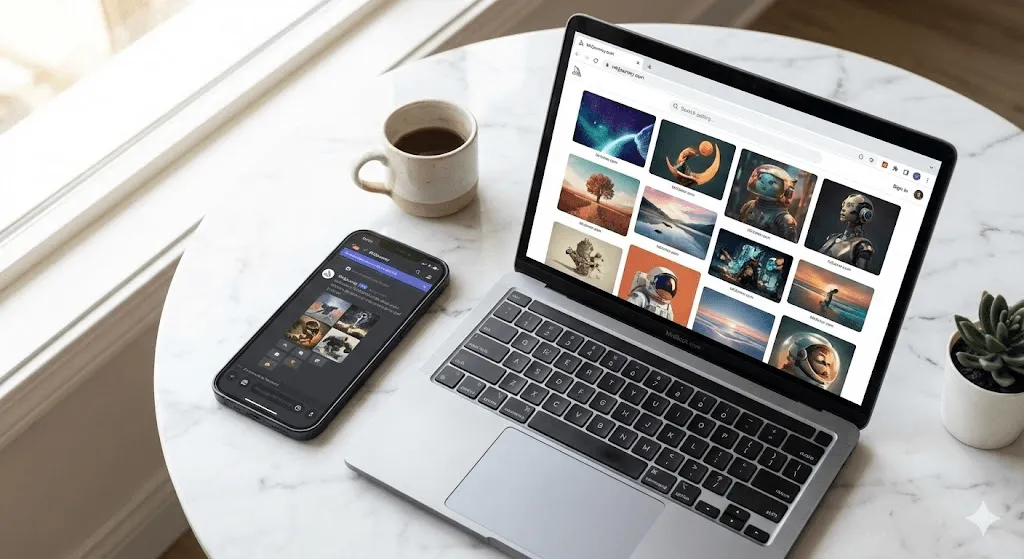 凭借这份 2026 年 Midjourney 教程,您不仅能够快速掌握 Discord 使用指南,更能轻松开启 AI 绘画入门之旅。
Midjourney 现已全面支持 Discord 和官网 (midjourney.com) 双平台访问,面对不同的使用环境,您可能会好奇哪种方式更胜一筹。以下为您带来两者的客观对比分析:
Midjourney 网页版界面
核心优势:
- ✅ 界面设计更加清爽直观,显著优化了交互体验
- ✅ 优化了图片组织与画廊展示,让管理更加高效
- ✅ 极大降低了入门门槛,对非 Discord 用户尤为友好
- ✅ 无需专门学习 Discord 操作技巧即可快速开启创作
- ✅ 集成内置图像编辑工具,助力高效完成作品修饰
不足之处
- ❌ 社交互动性较低,难以深度参与社区交流与讨论
- ❌ 核心功能更新滞后,无法第一时间体验 Discord 端的首发特性
- ❌ 无法在私有服务器上部署,导致特定创作场景受限
适用人群: 专为零基础初学者和独立创作者量身定制,特别是那些对 Discord 操作感到困惑的用户。
在 Discord 中玩转 Midjourney:全方位 AI 绘画实操指南
产品优势
- ✅ 实时互动的创意社区,为您带来不竭的灵感启发
- ✅ 支持将机器人添加至私人服务器,打造专属创作环境
- ✅ 抢先体验前沿新功能,始终保持技术领先地位
- ✅ 专为团队协作而设计,显著提升多人创作效率
- ✅ 通过斜杠指令实现精准操控,深度定制每一个细节
不足之处:
- ❌ 学习曲线较陡,新手上手门槛较高
- ❌ 公共频道嘈杂拥挤,创作环境干扰较多
- ❌ 需具备一定的 Discord 平台操作基础
- ❌ 作品散落在海量对话中,检索与管理极不方便
适用对象:专为追求卓越体验的资深用户、协作团队以及渴望深度社区互动的创作者量身打造。
测评结论
若您追求 Midjourney 的完整功能体验并计划进行长期、高频的创作,建议从 Discord 入手;而对于只想降低学习门槛、偶尔快速生成图片的用户,网页版则是更理想的选择。
许多资深用户习惯于结合使用两种平台:在 Discord 端享受极速生成体验并参与社区互动,随后再通过网页端高效地整理和管理作品。
深度剖析 2026 年两大主流 AI 绘图工具 Ideogram 与 Midjourney,为您带来全方位的技术对比与定价策略分析。通过对文本生成图像、标志设计及排版功能的深度测评,本文将助力您在创意设计工具的选择中精准发力,高效实现商业海报制作与高质量 AI 艺术创作。
深度剖析 2026 年两大主流 AI 绘图工具 Ideogram 与 Midjourney,为您带来全方位的技术对比与定价策略分析。通过对文本生成图像、标志设计及排版功能的深度测评,本文将助力您在创意设计工具的选择中精准发力,高效实现商业海报制作与高质量 AI 艺术创作。
常见问题解答
入门指南
Q:Midjourney 提供免费试用吗?答:目前 Midjourney 并不提供免费服务,其免费试用渠道已于 2023 年正式关闭;用户需通过订阅付费方案进行访问,起步价为每月 10 美元。
问:使用 Midjourney 是否必须通过 Discord? 答:目前已并非必选,您只需使用 Google 账号登录 midjourney.com 官网网页版即可开始创作;不过,Discord 平台依然能够提供更丰富的功能支持与优质的社区互动体验。
问:Midjourney 是否支持在手机端使用? 答:当然可以。您只需下载 Discord 移动应用,即可获得与桌面端完全一致的操作体验,随时随地尽享流畅的 AI 创作过程。
订阅与账单
问:快速模式(Fast mode)与放松模式(Relax mode)有何区别? 答:快速模式通过消耗月度 GPU 配额实现极速成像,通常不足 1 分钟即可完成;而放松模式虽处理时间略长(约 1 至 10 分钟),但支持不限次数生成,适用于订阅标准版及以上方案的用户。
Q: 我可以随时取消订阅吗? A: 支持随时取消。您的订阅权限将一直保留至当前计费周期结束,在此期间您仍可正常使用相关功能。
问:如果快速时长(Fast hours)耗尽了该怎么办? 答:您可以选择等待下个月的额度自动重置,也可以通过升级订阅方案或直接加购额外的快速时长包来继续进行创作。
开启图像创作
问:为什么我生成的图片与网上的参考案例有所不同? 答:生成效果通常受 Midjourney 版本、参数配置以及提示词精细度的综合影响;建议您使用最新的版本 ( v 6.1) 并尝试输入更详尽的提示词,以获得更理想的创作结果。
问:Midjourney 生成的图片可以商用吗? 答:可以。凡订阅付费计划的用户,均拥有所生成作品的版权并可将其用于商业用途,具体细节请参阅服务条款。
问:如何设定生成的图片比例? 答:您只需在提示词后添加 ar 参数即可实现,例如通过 ar 16:9 生成宽屏画面、 ar 9:16 适配手机壁纸,或使用 ar 1:1 创作标准正方形图像。
隐私保护与作品分享
问:我在 Midjourney 生成的图像是私密的吗? 答:默认情况下,生成的作品并非私密,所有图像均会公开显示在 midjourney.com 上供他人查看。如果您需要私密创作环境,可以订阅 Pro 或 Mega 计划,通过其中包含的“隐身模式”(Stealth Mode)进行创作。
常见问题:我的提示词(Prompts)会被公开吗? 答:在 Discord 公共频道中,您的提示词对所有人可见;而在私信或私人服务器里,虽然其他用户无法查看到提示词,但除非开启隐身模式(Stealth Mode),否则生成的图像依然会在官网上公开展示。
深度剖析 2026 年两大主流 AI 绘图工具 Ideogram 与 Midjourney,为您带来全方位的技术对比与定价策略分析。通过对文本生成图像、标志设计及排版功能的深度测评,本文将助力您在创意设计工具的选择中精准发力,高效实现商业海报制作与高质量 AI 艺术创作。
深度剖析 2026 年两大主流 AI 绘图工具 Ideogram 与 Midjourney,为您带来全方位的技术对比与定价策略分析。通过对文本生成图像、标志设计及排版功能的深度测评,本文将助力您在创意设计工具的选择中精准发力,高效实现商业海报制作与高质量 AI 艺术创作。
结语:即刻开启您的 Midjourney 创作之旅
至此,您已掌握在 Discord 中利用 Midjourney 创作精美 AI 图像的全部要领,让我们在开启艺术之旅前,快速回顾一下其中的核心步骤:
- 完成 Discord 账号配置并加入 Midjourney 官方社区。
- 根据您的创作频率与需求,订阅最合适的会员服务方案。
- 通过 /imagine 指令输入基础提示词,开启您的首个 AI 创作项目。
- 进阶探索各项参数与提示词技巧,从而精准掌控画面视觉效果。
- 灵活运用 V 按钮进行变体迭代或 U 按钮放大细节,持续打磨作品质量。
- 建议将机器人添加至个人专属服务器,以获得更具隐私性的创作体验。
最重要的核心建议莫过于即刻开始创作,不必担心初次尝试不够完美;作为一项需要持续磨炼的技能,你在 Midjourney 中的实践越多,就越能精通提示词的撰写技巧,从而让生成的图像精准契合脑海中的每一个创意愿景。
欢迎开启 AI 艺术之旅,即刻释放无限创意,亲自打造令人惊叹的视觉杰作。
深度剖析 2026 年两大主流 AI 绘图工具 Ideogram 与 Midjourney,为您带来全方位的技术对比与定价策略分析。通过对文本生成图像、标志设计及排版功能的深度测评,本文将助力您在创意设计工具的选择中精准发力,高效实现商业海报制作与高质量 AI 艺术创作。
深度剖析 2026 年两大主流 AI 绘图工具 Ideogram 与 Midjourney,为您带来全方位的技术对比与定价策略分析。通过对文本生成图像、标志设计及排版功能的深度测评,本文将助力您在创意设计工具的选择中精准发力,高效实现商业海报制作与高质量 AI 艺术创作。
深度剖析 2026 年两大主流 AI 绘图工具 Ideogram 与 Midjourney,为您带来全方位的技术对比与定价策略分析。通过对文本生成图像、标志设计及排版功能的深度测评,本文将助力您在创意设计工具的选择中精准发力,高效实现商业海报制作与高质量 AI 艺术创作。